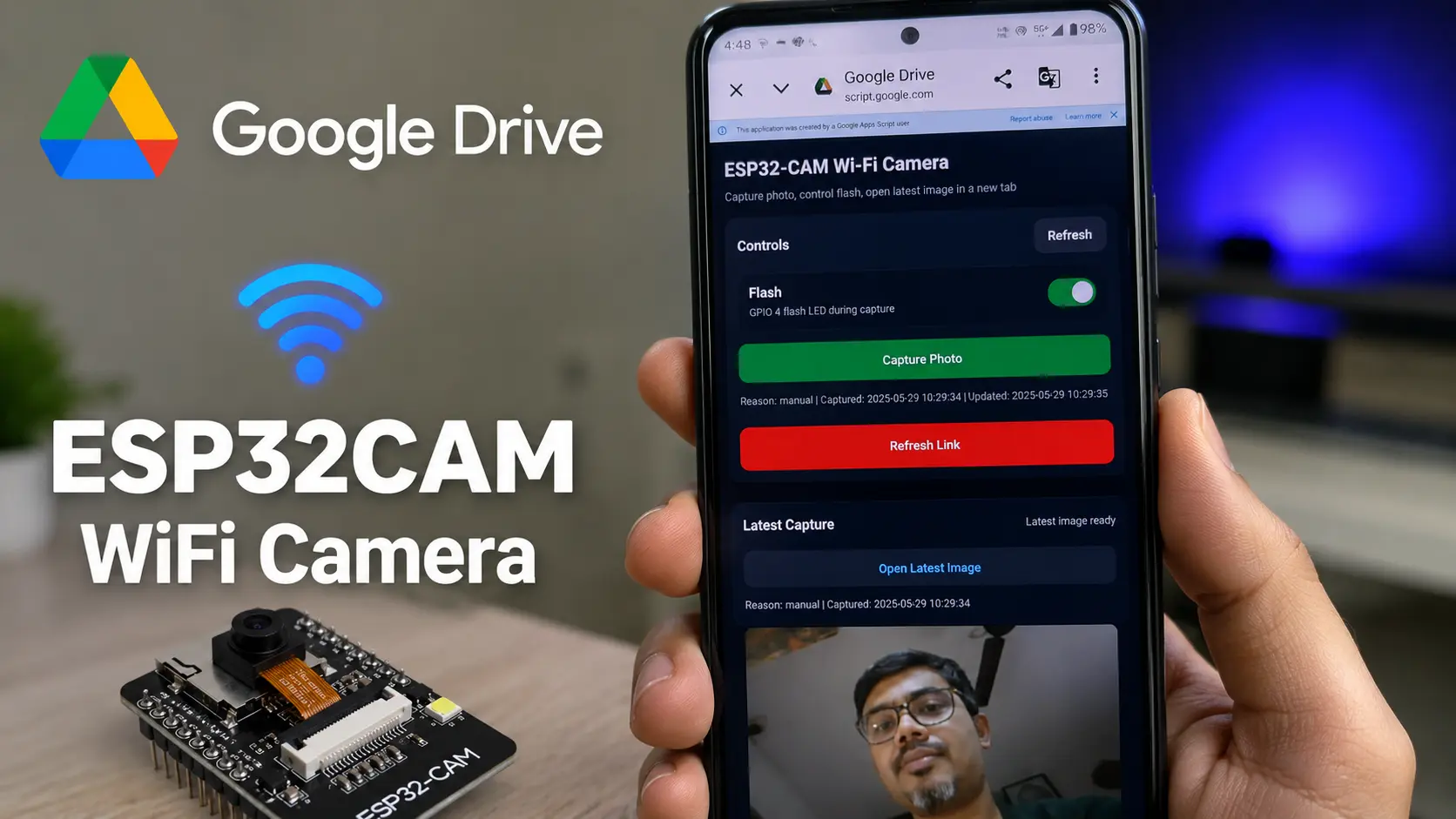

Building an ESP32-CAM WiFi Camera is one of the best ways to learn cloud-connected IoT projects. In this tutorial, we will create a complete ESP32-CAM WiFi Camera system that can capture photos remotely from a web dashboard and automatically store them in Google Drive. The project uses free Google services including Google Sheets, Google Apps Script, and Google Drive, making it an excellent choice for beginners who want to build a cloud camera without Firebase, MQTT brokers, or paid cloud servers.
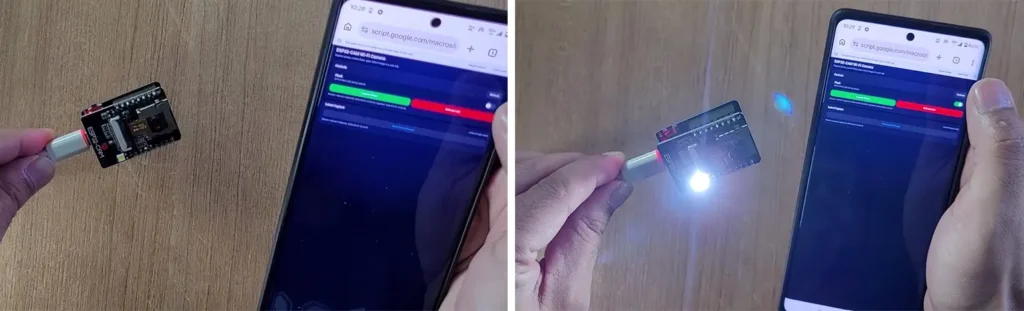
Using the dashboard, you can remotely capture photos, control the built-in flash LED, and open the latest captured image directly from Google Drive. Since the entire system runs on free Google services, it is simple to set up and perfect for learning cloud-based ESP32 projects.
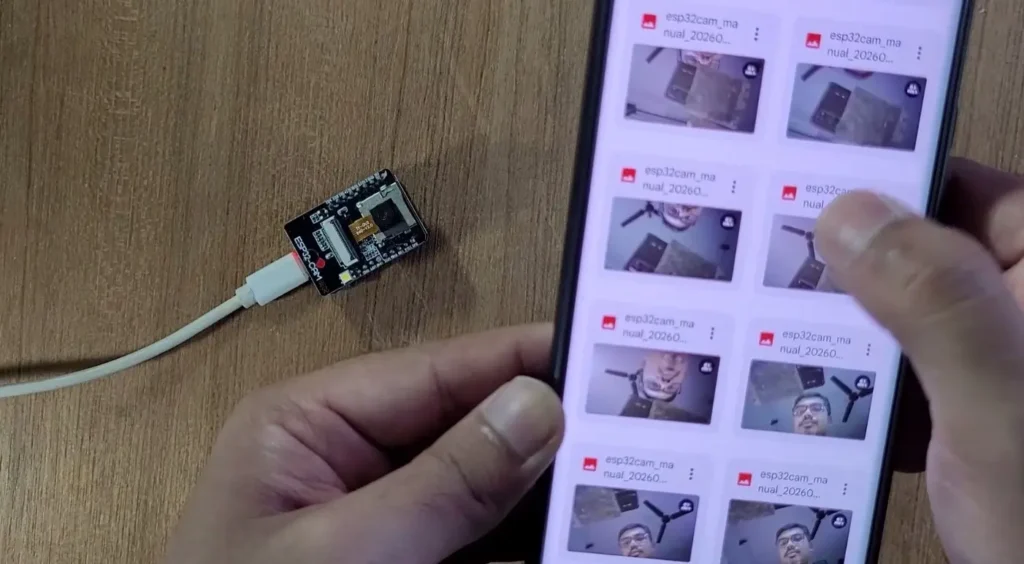
The dashboard allows you to:
- Capture photos remotely from anywhere
- Control the ESP32-CAM flash LED
- Store images automatically in Google Drive
- Open the latest captured image directly from the dashboard
- Access the system from mobile phones, tablets, or desktop browsers
Table of Contents
Tutorial Video on ESP32-CAM WiFi Camera Project
Project Overview
The project consists of three main components:
ESP32-CAM
The ESP32-CAM acts as the camera device. It connects to Wi-Fi, receives commands from the dashboard, captures photos, and uploads images to Google Drive.
Google Apps Script
Google Apps Script works as the cloud backend. It receives images from ESP32-CAM, stores them in Google Drive, and manages communication between the dashboard and the ESP32-CAM.
Web Dashboard
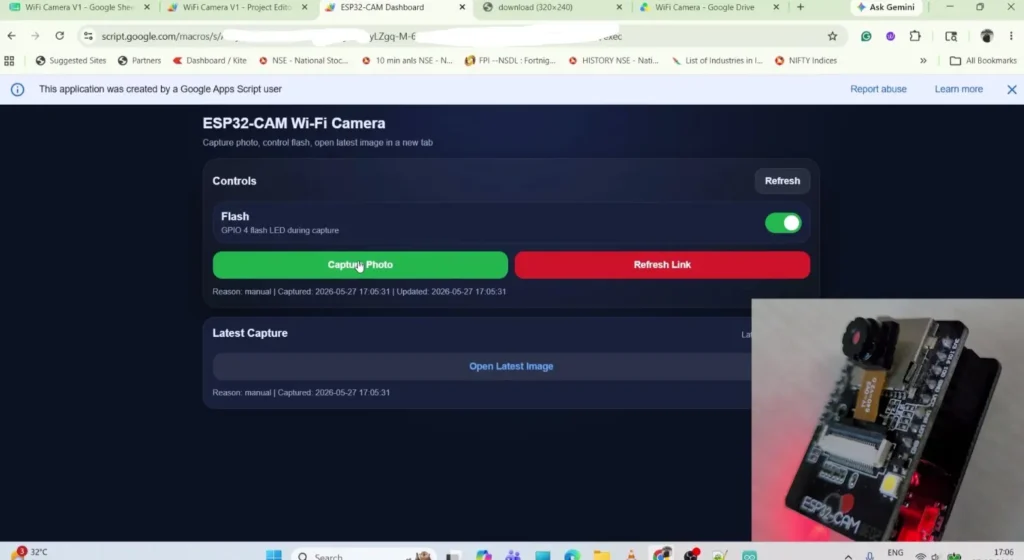
The dashboard allows the user to remotely capture photos and control the flash LED from any web browser.
Hardware Required
- ESP32-CAM (AI Thinker)
- ESP32-CAM-MB Programmer
OR
- ESP32-CAM
- FTDI232 USB-to-Serial Converter
Optional:
- USB Cable
- Breadboard
- Jumper Wires
Software Required
- Arduino IDE
- Google Account
- Google Drive
- Google Apps Script
ESP32-CAM Programming Options
There are two ways to upload code to the ESP32-CAM.
Option 1: ESP32-CAM-MB Programmer
The easiest method is to use the ESP32-CAM-MB programmer board.
Simply plug the ESP32-CAM into the programmer board and connect it to your computer using a USB cable.
Advantages:
- Easy programming
- No additional wiring
- Reliable uploading
Option 2: FTDI232 USB-to-Serial Converter
If you do not have an ESP32-CAM-MB board, you can use an FTDI232 programmer.
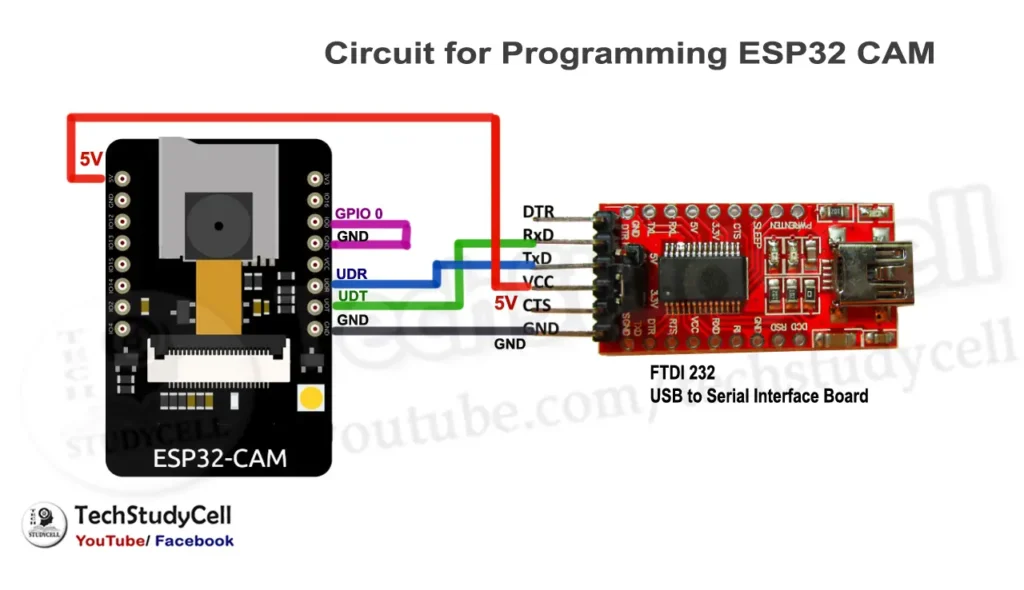
Connections:
- FTDI TX → ESP32-CAM RX0
- FTDI RX → ESP32-CAM TX0
- FTDI GND → ESP32-CAM GND
- FTDI 5V → ESP32-CAM 5V
- GPIO0 → GND (during upload)
After uploading the code:
- Remove GPIO0 from GND
- Press the RESET button
The ESP32-CAM will boot normally.
How the System Works
The complete workflow is shown below:
User Dashboard
↓
Capture Photo Button
↓
Google Apps Script
↓
ESP32-CAM
↓
Capture Image
↓
Google Drive Storage
↓
Latest Image Link Updated
↓
Dashboard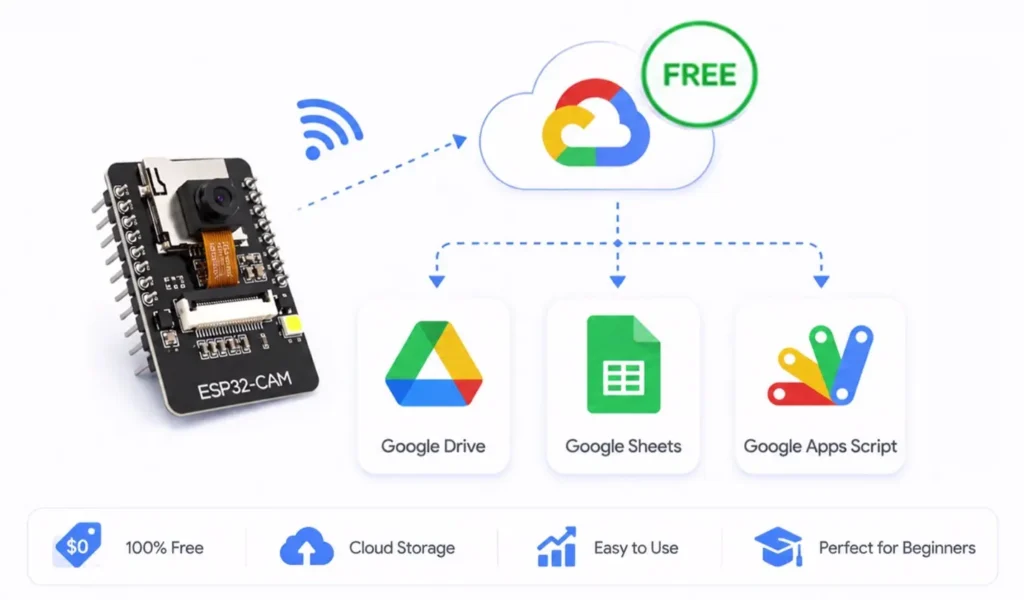
When the user presses the Capture Photo button:
- The dashboard sends a capture request.
- ESP32-CAM receives the command.
- The camera captures a photo.
- The image is converted to Base64.
- The image is uploaded to Google Apps Script.
- Apps Script stores the image in Google Drive.
- A Google Drive image link is generated.
- The dashboard displays a button to open the latest image.
Flash LED Operation
One useful feature of this project is Flash LED control.
The built-in ESP32-CAM flash LED connected to GPIO4 can be controlled directly from the dashboard.
When Flash is enabled:
- Flash LED turns ON
- Photo is captured
- Flash LED turns OFF automatically
This helps improve image quality in low-light environments.
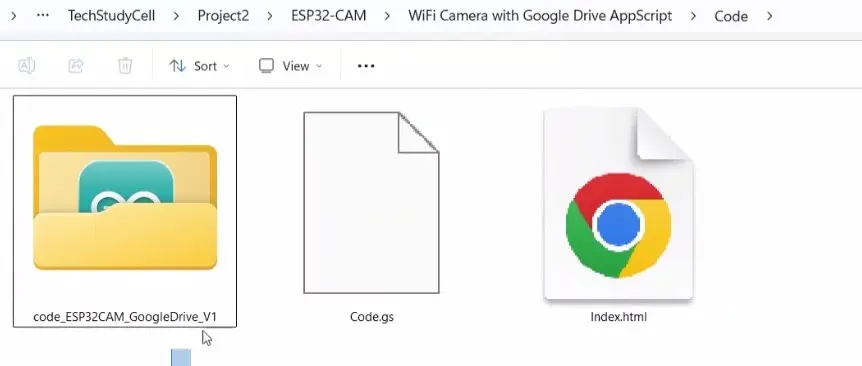
Download Required Files for ESP32-CAM WiFi Camera
PCBWay – Your One-Stop PCB Manufacturing & Assembly Solution
PCBWay is celebrating its 12th Anniversary! From July 1 – July 31, 2026, enjoy big coupons, premium gifts, and exclusive solder mask color perks. It’s the perfect opportunity to save on your next PCB project.
From prototype to mass production, PCBWay provides fast, reliable PCB fabrication and turnkey assembly services, supporting FR4, HDI, Rigid-Flex, RF, Aluminum, Flexible PCBs, and multilayer boards up to 24 layers.
Don’t miss these limited-time anniversary offers! Learn more: PCBWay 12th Anniversary.
Creating the Google Sheets Backend
First, create a new Google Sheet and give it a suitable name, such as:
WiFi Camera V1
This Google Sheet will be used to store camera settings, capture requests, and the latest image information.
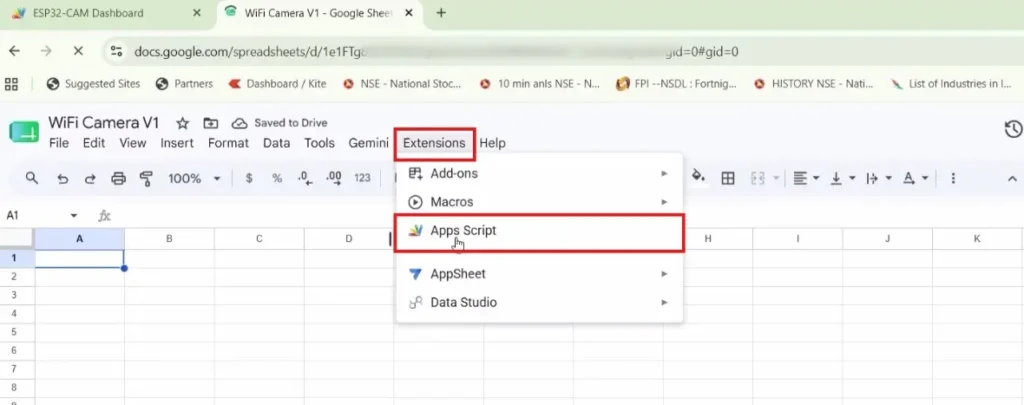
Next, open:
Extensions → Apps Script
Google Apps Script will open in a new tab.
Create:
Code.gs
Paste the Code.gs file provided in this tutorial.
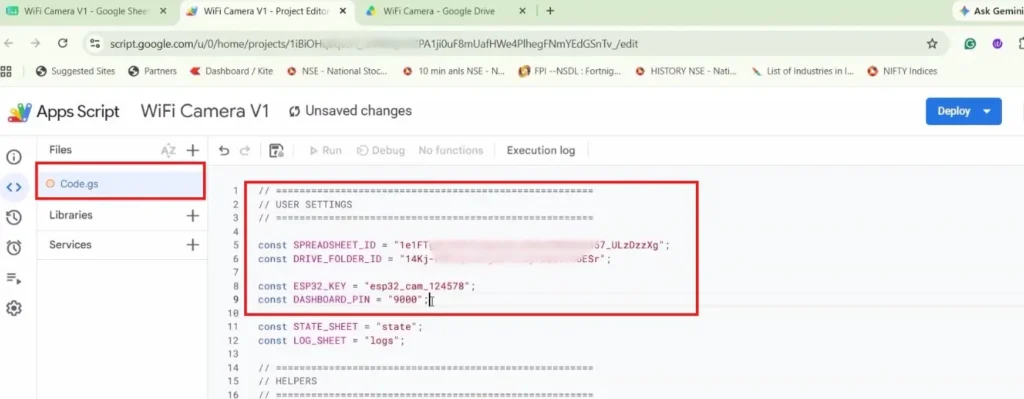
Update:
- Spreadsheet ID
- Drive Folder ID
- Security Keys (ESP32_KEY must be the same as the Arduino sketch)
- Enter a Dashboard Pin (This will act as the login PIN)
Save the project.
Creating the Dashboard for ESP32-CAM WiFi Camera
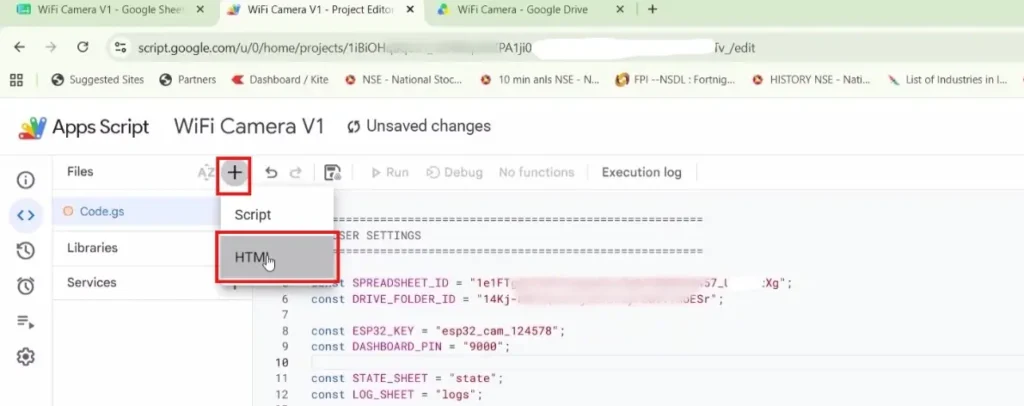
Create a new HTML file:
Index.html
Paste the dashboard code.
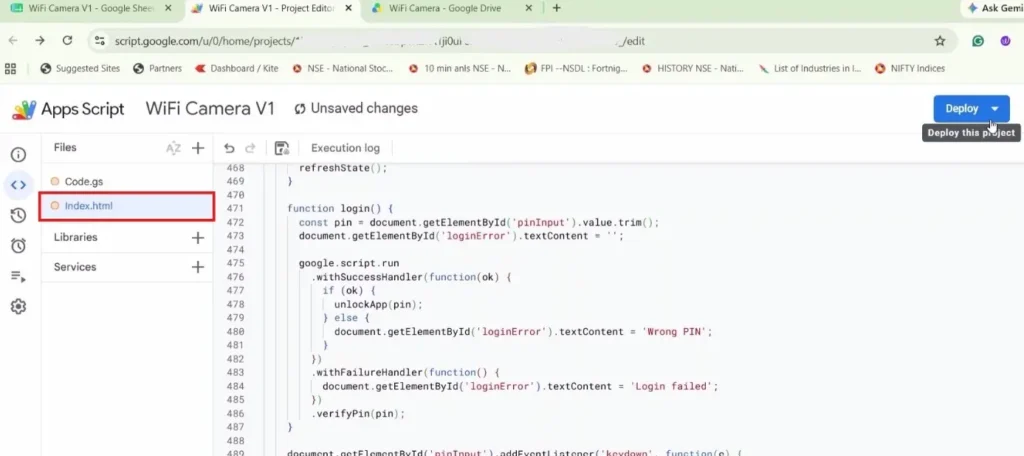
The dashboard includes:
- PIN-protected login
- Flash ON/OFF switch
- Capture Photo button
- Refresh button
- Open Latest Image button
The dashboard is mobile-friendly and works on smartphones and tablets.
The Code.gs file acts as the cloud backend, while the Index.html file creates the web dashboard used to control the ESP32-CAM.
Deploying the Web App
After saving Code.gs and Index.html:
Deploy → New DeploymentClick on the Gear icon and select:
Web AppIn Configuration:
Enter the project name with version
Execute As:
Me
Who Has Access:
AnyoneClick Deploy.
Why Select “Who Has Access: Anyone”?
The ESP32-CAM communicates with Google Apps Script using HTTPS requests. Since the ESP32-CAM cannot log in to a Google account, the web app must be accessible without requiring Google authentication.
By selecting:
Who Has Access → Anyone
Google allows the ESP32-CAM and the dashboard to access the Apps Script web app without signing in to a Google account. This is required for proper communication between the ESP32-CAM, Google Drive, and the web dashboard.
Although the web app is accessible publicly, the project still uses custom security keys and dashboard PIN protection to prevent unauthorized access.
Google Authorization Warning
When deploying the Apps Script project for the first time, Google may display security warnings such as:
- Google hasn’t verified this app
- This app wants to access your Google Drive
- Authorization required
This is completely normal because the Apps Script project is created under your personal Google account and has not been submitted to Google for verification.
To continue:
- Click Advanced
- Select Go to Project Name (unsafe)
- Review the requested permissions
- Click Allow
These permissions are required because the script needs access to:
- Google Drive (for storing images)
- Google Sheets (for storing dashboard data)
- Apps Script services
After authorization is completed once, the project will work normally and you will not need to repeat the process unless you redeploy or modify the required permissions.
Now, copy the Web App URL.
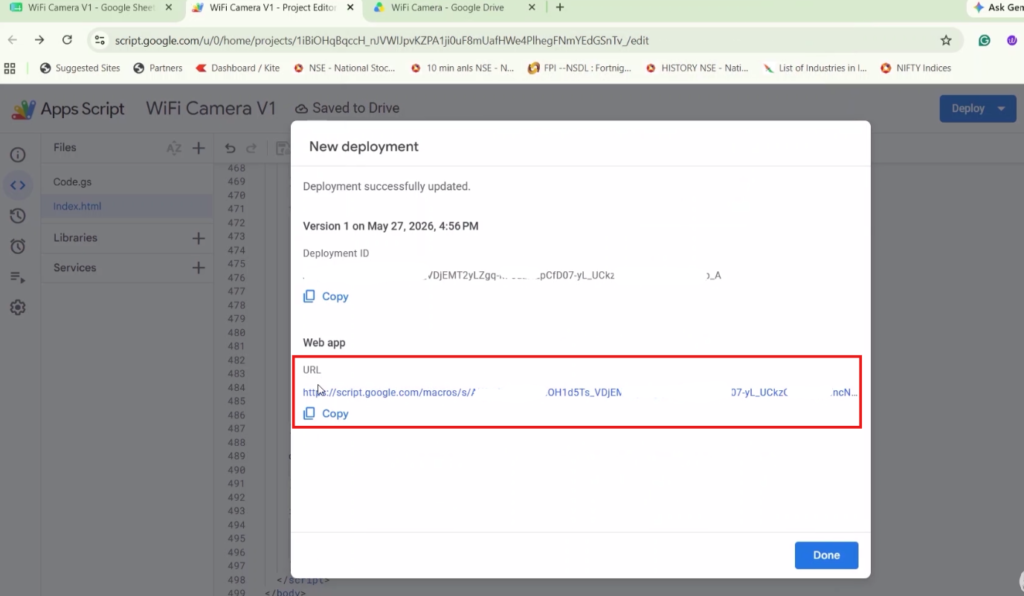
This URL will be used in the ESP32-CAM sketch.
Uploading the ESP32-CAM Sketch
Open Arduino IDE.
Install:
ESP32 by Espressif Systems (version: 2.0.14)
Board:
AI Thinker ESP32-CAMin the sketch, Update:
- WiFi SSID
- WiFi Password
- Apps Script URL
- ESP32_KEY
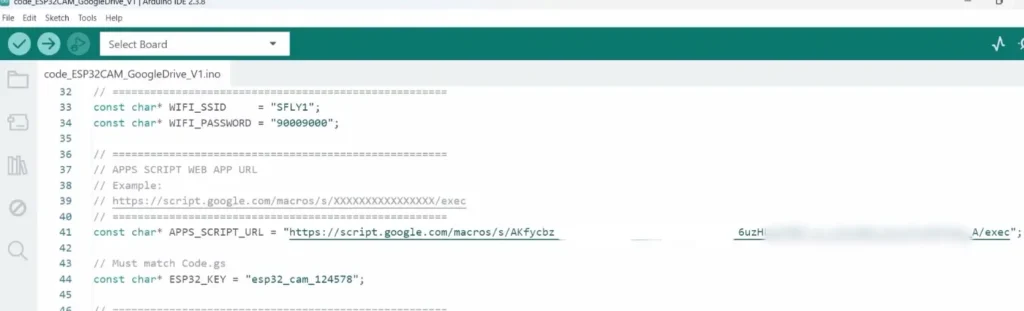
Upload the sketch.
After booting, the ESP32-CAM will connect to Wi-Fi and begin communicating with Google Apps Script.
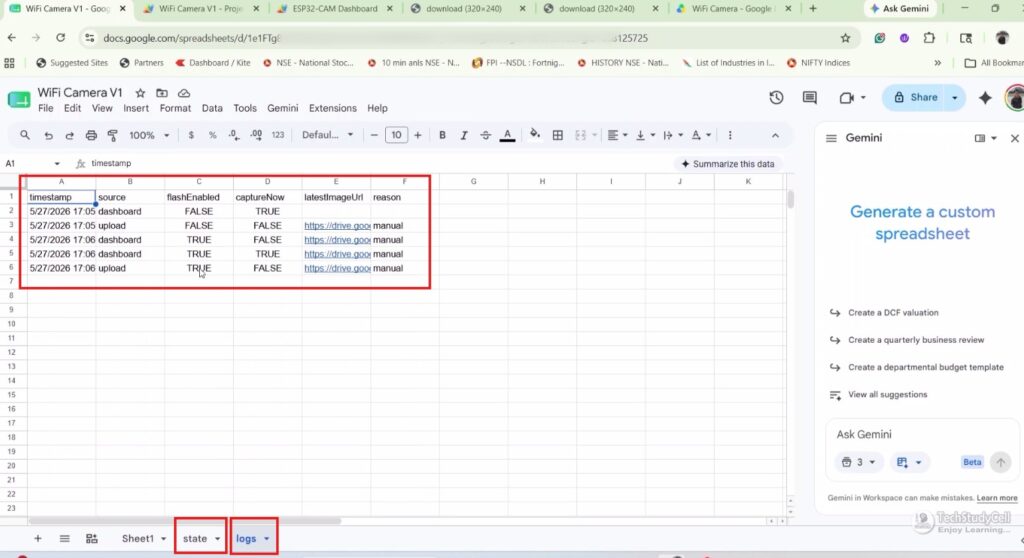
In the Google Sheet state & logs tab will be automatically created. You can track all the URL timestamps in the logs.
Key Features of ESP32-CAM WiFi Camera
- Google Drive Cloud Storage
- Remote Photo Capture
- Flash LED Control
- Mobile-Friendly Dashboard
- Secure Dashboard Login
- Google Apps Script Backend
- No Firebase Required
- No Paid Cloud Services
- Beginner-Friendly Setup
- FREE Cloud Camera Solution
Applications
- Home Security Monitoring
- Remote Camera Access
- Door Visitor Snapshot System
- Office Surveillance
- Smart Farming Monitoring
- Warehouse Monitoring
- DIY IoT Learning Projects
- Remote Equipment Inspection
Conclusion
In this project, we built a complete ESP32-CAM WiFi Camera using Google Drive and Google Apps Script.
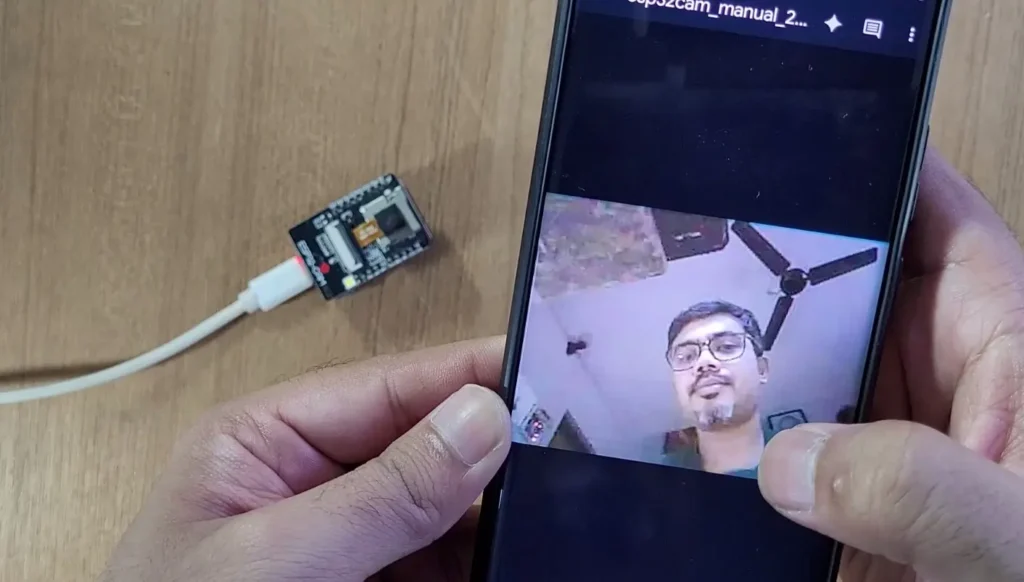
The system allows remote photo capture, automatic image storage, flash control, and cloud-based access through a mobile-friendly dashboard.
Because it relies entirely on free Google services, it is an excellent project for beginners who want to learn cloud-connected IoT systems without dealing with Firebase or paid servers.
You can further expand this project by adding motion detection, PIR sensors, Telegram notifications, AI image processing, or face detection to create a more advanced cloud surveillance system.