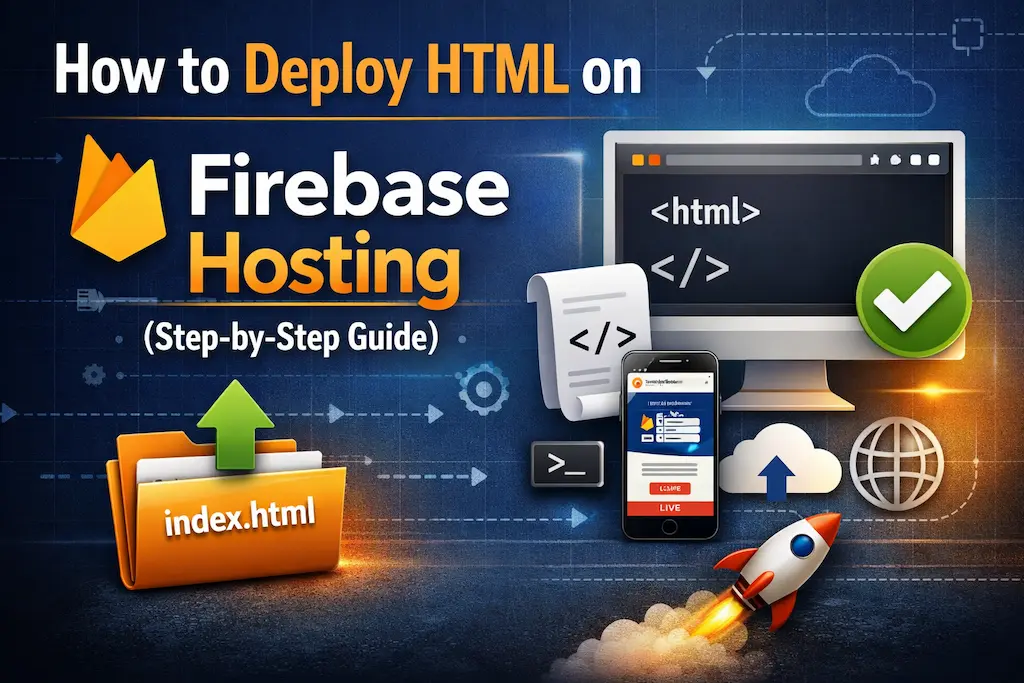

This guide shows how to host a simple index.html dashboard for free using Firebase Hosting. Perfect for IoT dashboards, ESP8266 control panels, portfolios, and mobile web apps.
Table of Contents
Requirements:
Before starting, you need:
- A Google account
- Your index.html file is ready
- Internet connection
- Windows PC / Laptop
- Node.js installed
Step-by-Step Guide on How to Deploy HTML on Firebase Hosting
Step 1: Install Node.js
- Go to the official Node.js website and download the LTS version.
- Install it normally.
- After installation, open Command Prompt and check:
node -v
npm -v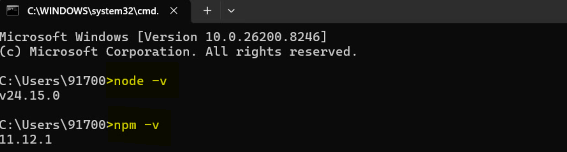
Step 2: Install Firebase CLI
Open Command Prompt and run:
npm install -g firebase-toolsThis installs the Firebase command line tool globally.
Step 3: Login to Firebase
Run:
firebase login
- A browser window opens.
- Login using the same Google account used for Firebase.
- After successful login, return to the Command Prompt.
Step 4: Create a Firebase Project
Go to the Firebase Console.
- Click Create Project
- Enter project name
- Continue with default settings
- Finish project creation
Example:
smartplug-dashboard
Step 5: Create Project Folder on PC
Create a folder anywhere, for example:
SmartPlugDashboard
Inside it, place your file:
SmartPlugDashboard/
 └── index.html
Step 6: Open Command Prompt in Folder
Go inside the folder where you kept the index.html:
cd Desktop\SmartPlugDashboard
(**Adjust path based on your folder location.)
Step 7: Initialize Firebase Hosting
Run:
firebase init hosting
You’ll see setup questions.
Step 8: Answer Setup Questions
Select Options Carefully
Use an existing project?
Choose:
Use an existing project
Then select your Firebase project.
What do you want to use as public directory?
Type:
.
(**dot means current folder)
Configure as single-page app?
Choose:
No
Overwrite index.html?
Choose:
No
Step 9: Files Created
Now your folder looks like:
SmartPlugDashboard/
 ├── index.html
 ├── firebase.json
 └── .firebaserc
Step 10: Deploy Website
Run:
firebase deploy
Wait a few seconds.
You’ll see:
Deploy complete!
Hosting URL:
https://yourproject.web.app
Step 11: Open the Dashboard
Visit:
https://yourproject.web.app
Your index.html is now live.
Step 12: Update Website Later
Whenever you edit index.html, run again:
firebase deploy
Changes go live instantly.
Example Folder Structure
SmartPlugDashboard/
 ├── index.html
 ├── firebase.json
 └── .firebaserc
Mobile App Style Installation
Open your hosted dashboard in Google Chrome.
Tap:
Add to Home Screen
Now it behaves like an app.
PCBWay – One-Stop PCB Manufacturing
Quality Assurance
PCBWay ensures high-quality PCBs with strict testing, premium materials, and ISO 9001 & UL-certified manufacturing for reliable performance and on-time delivery.

From prototype to production, PCBWay offers fast PCB fabrication and assembly services, supporting advanced PCB technologies including FR4, HDI, Rigid-Flex, RF, and multilayer boards up to 24 layers.
For more details: PCBWay – Explore More
Common Errors & Fixes
'node' is not recognized
Install Node.js properly and restart PC.
Still Seeing Firebase Welcome Page
Replace the default index.html with your own file, then run:
firebase deploy
Website Not Updating
Use browser hard refresh:
Ctrl + F5
Is Firebase Hosting Free?
Yes. Firebase offers a free tier (Spark Plan) suitable for:
- Personal dashboards
- ESP8266 projects
- Portfolios
- Small websites
- Hobby apps
Always visit the related website for the latest terms and conditions.
Best Use Cases
- ESP8266 Home Automation Dashboard
- Smart Plug Controller
- IoT Timer Dashboard
- Single Page Web App
- Mobile Installable PWA
Keep your dashboard lightweight (index.html, CSS, JS) for faster loading and free-tier efficiency.
Conclusion
Firebase Hosting is one of the easiest and fastest ways to publish an index.html dashboard online for free. With just a few commands, your project gets a secure HTTPS link and can even be installed like a mobile app.
Useful Commands Summary
npm install -g firebase-tools
firebase login
firebase init hosting
firebase deploy