
Table of Contents
What is WLED?
WLED is a powerful yet easy-to-use solution for controlling LED strips, offering advanced features, smart home integration, and stunning lighting effects without complex coding. It’s an ideal choice for both beginners and professionals looking to create customizable and dynamic lighting projects.
Here we will use the WLED web installer to upload the firmware. First, connect the ESP32 or ESP8266 to the laptop.
You just need a browser like Google Chrome or Microsoft Edge.
Open a browser and go to WLED Web Installer – https://install.wled.me
How to install the WLED firmware
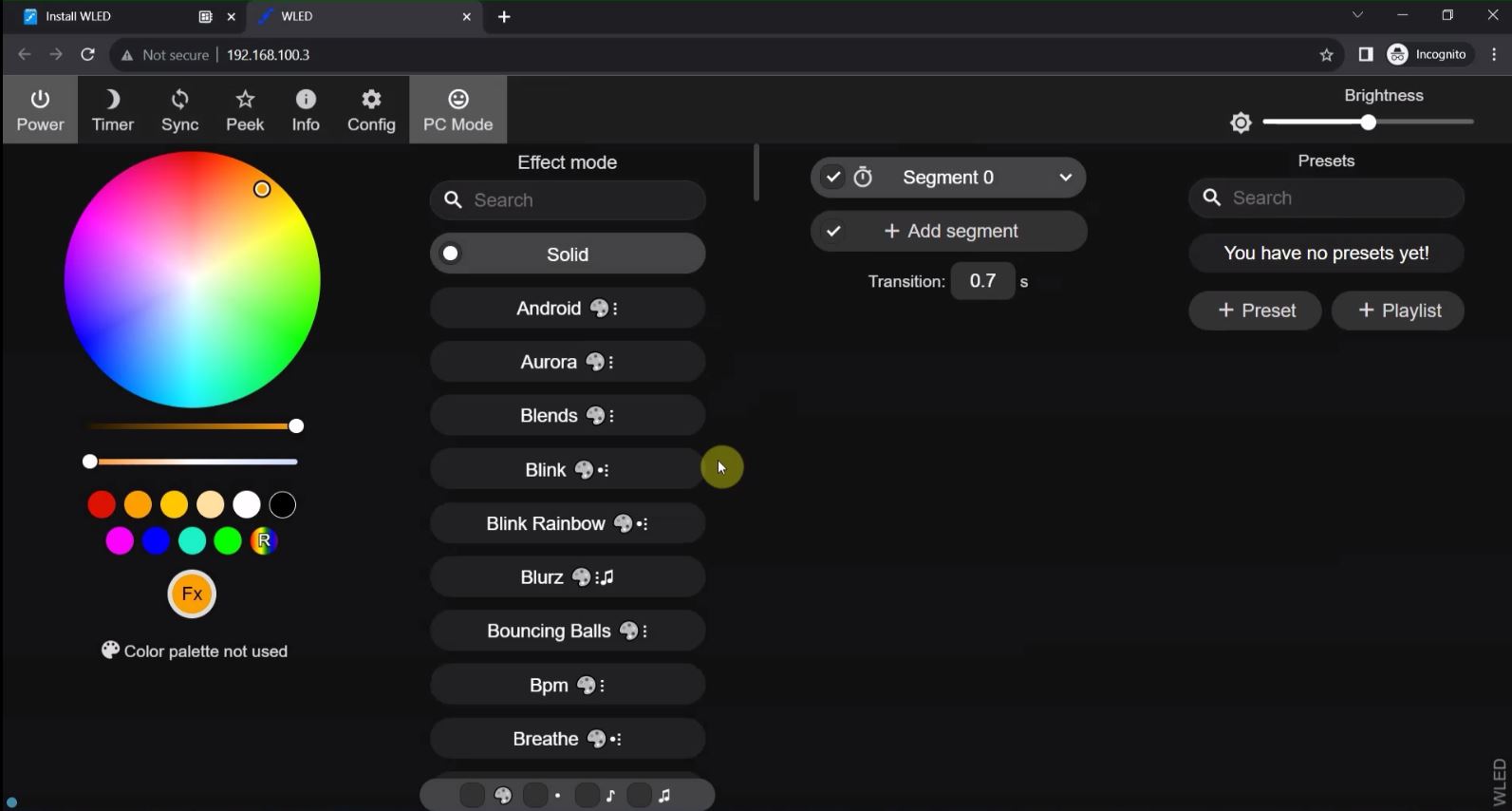
In the following steps, I have explained how to upload firmware to ESP32 for WLED projects using the WLED web installer.
Select the Firmware in WLED web installer
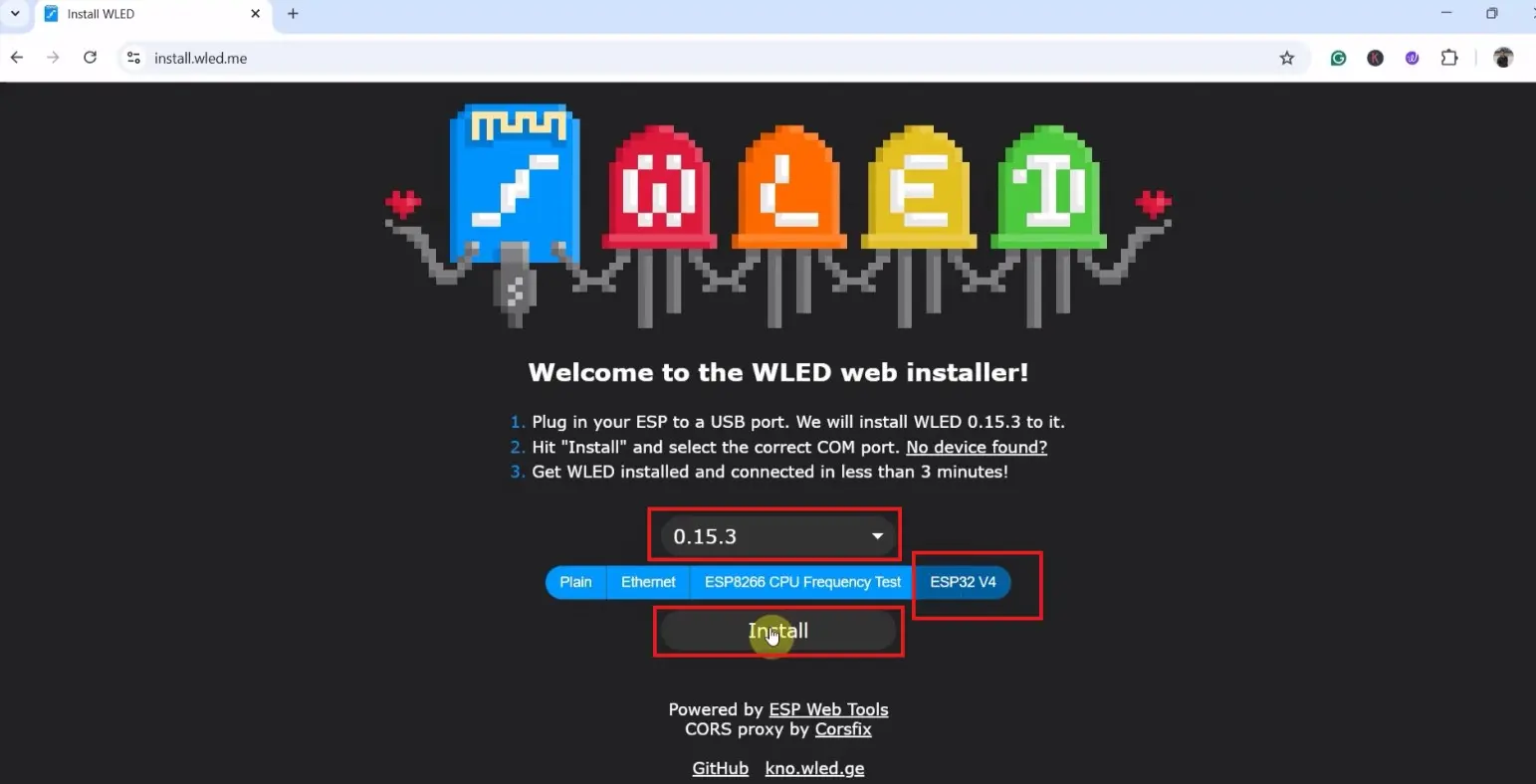
In WLED Web Installer first, select the Firmware version in the WLED web installer.
Then select the board (ESP32 or ESP8266).
Click on “Install“.
Select the COM port for the microcontroller
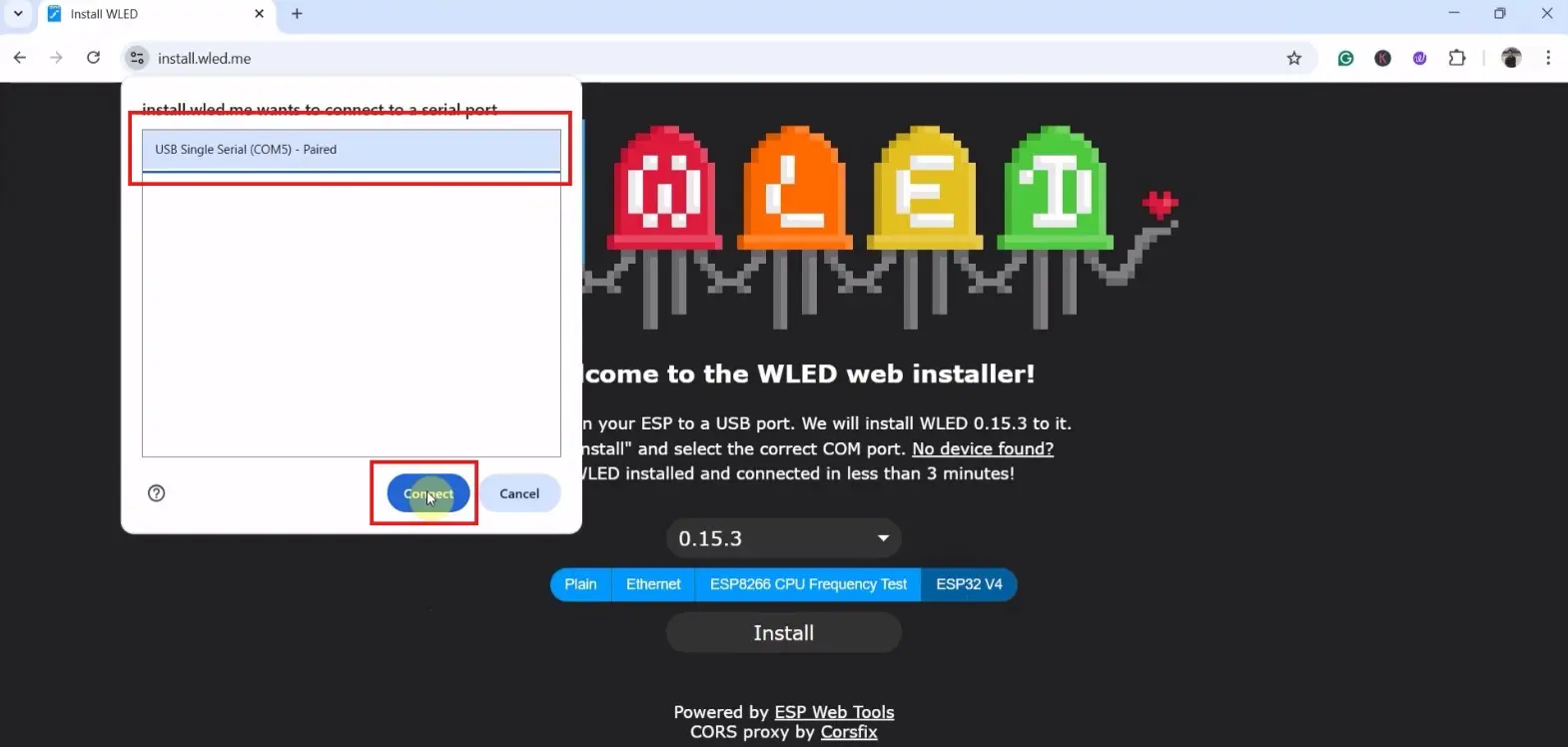
Now select the COM port for the microcontroller and click on “Connect“.
Click on “INSTALL WLED”
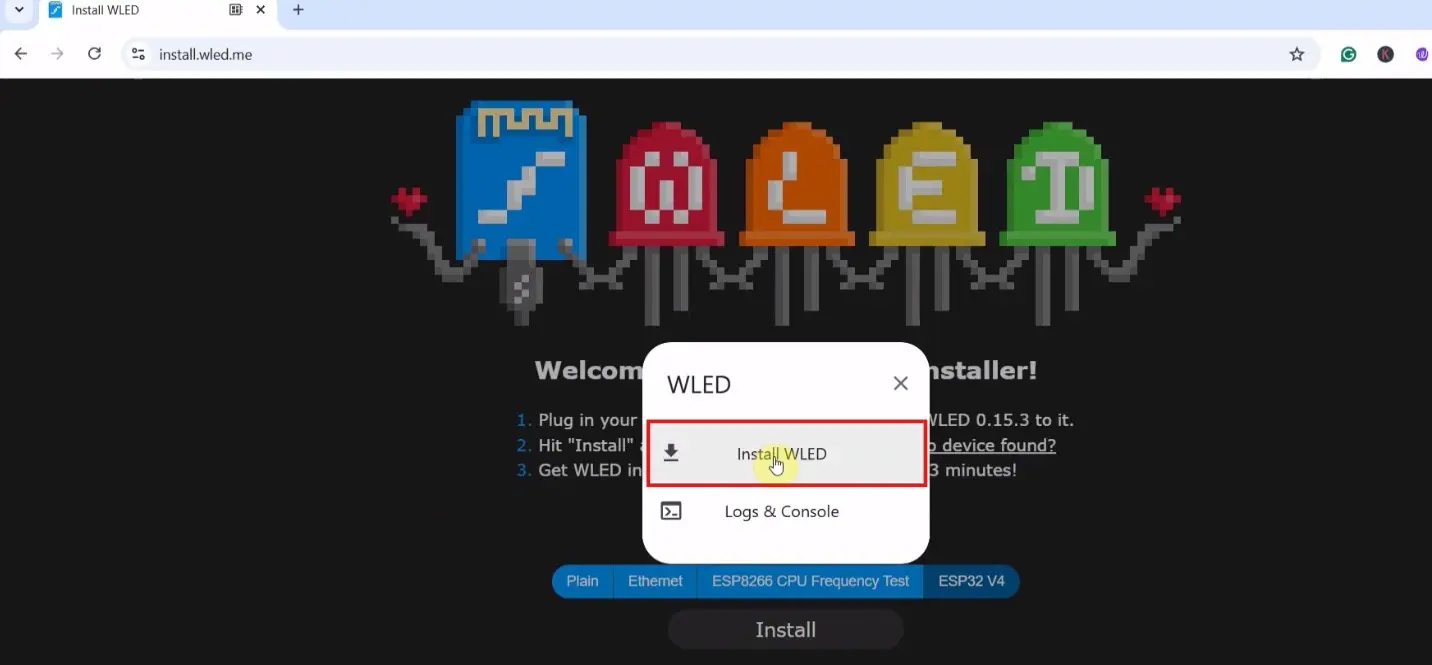
Click on “INSTALL WLED”.
Erase device before installing
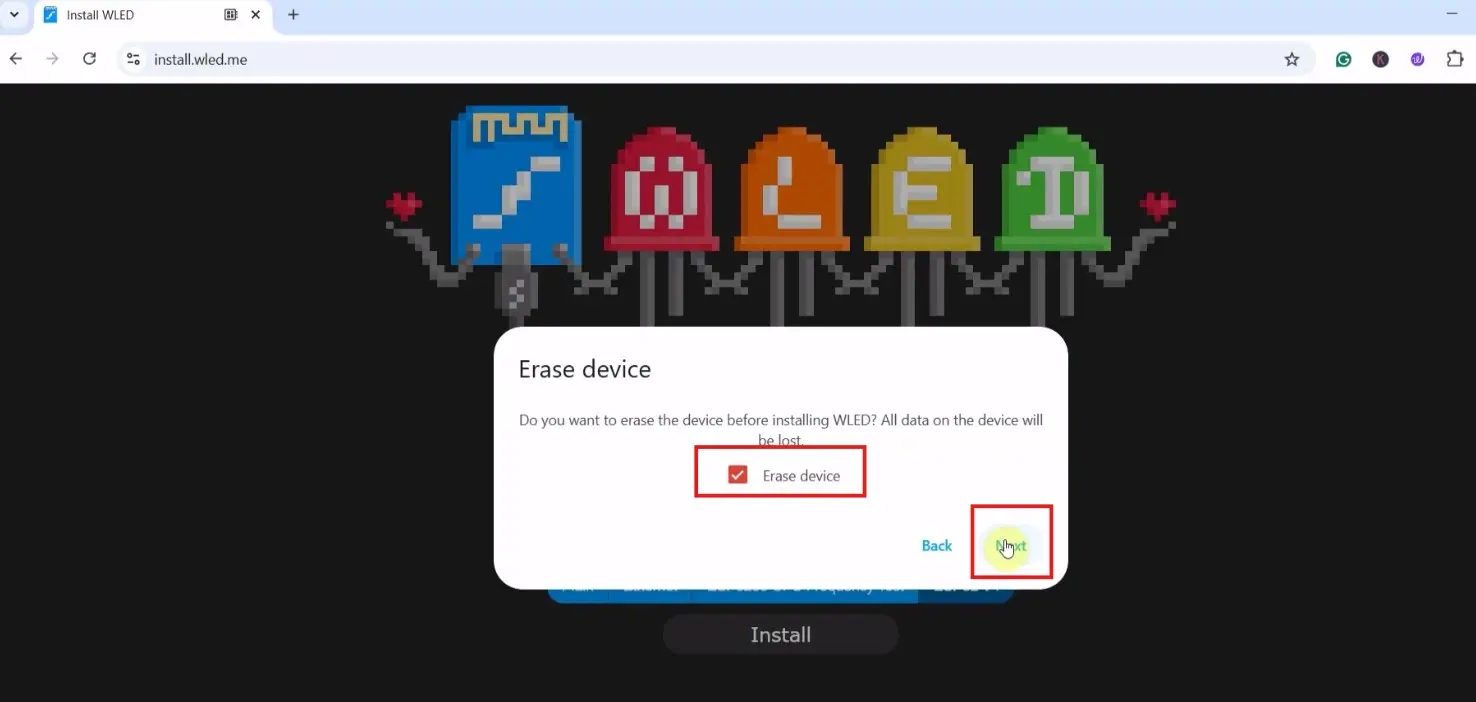
Check box for “Erase device“.
Then click on “Next“.
Click on “Install”
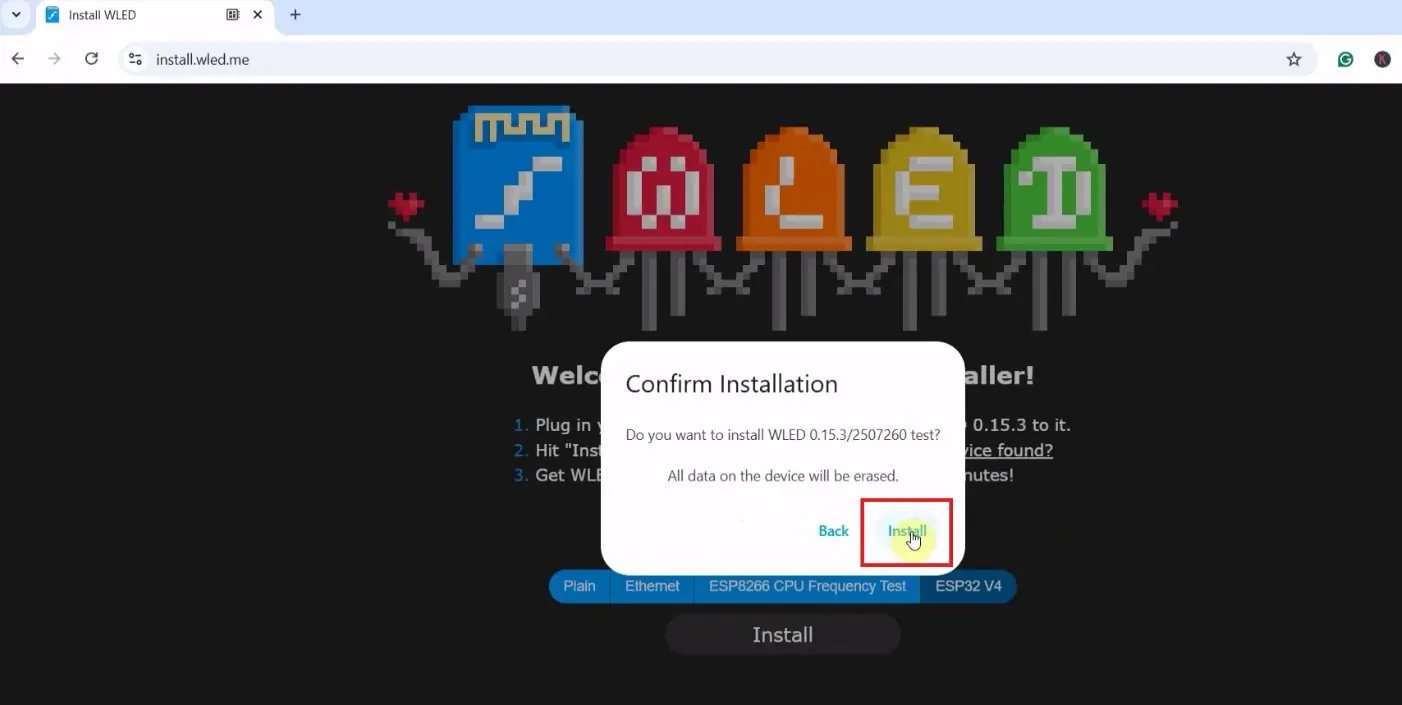
Now check the Firmware version and click on “Install“.
Wait until the firmware gets installed
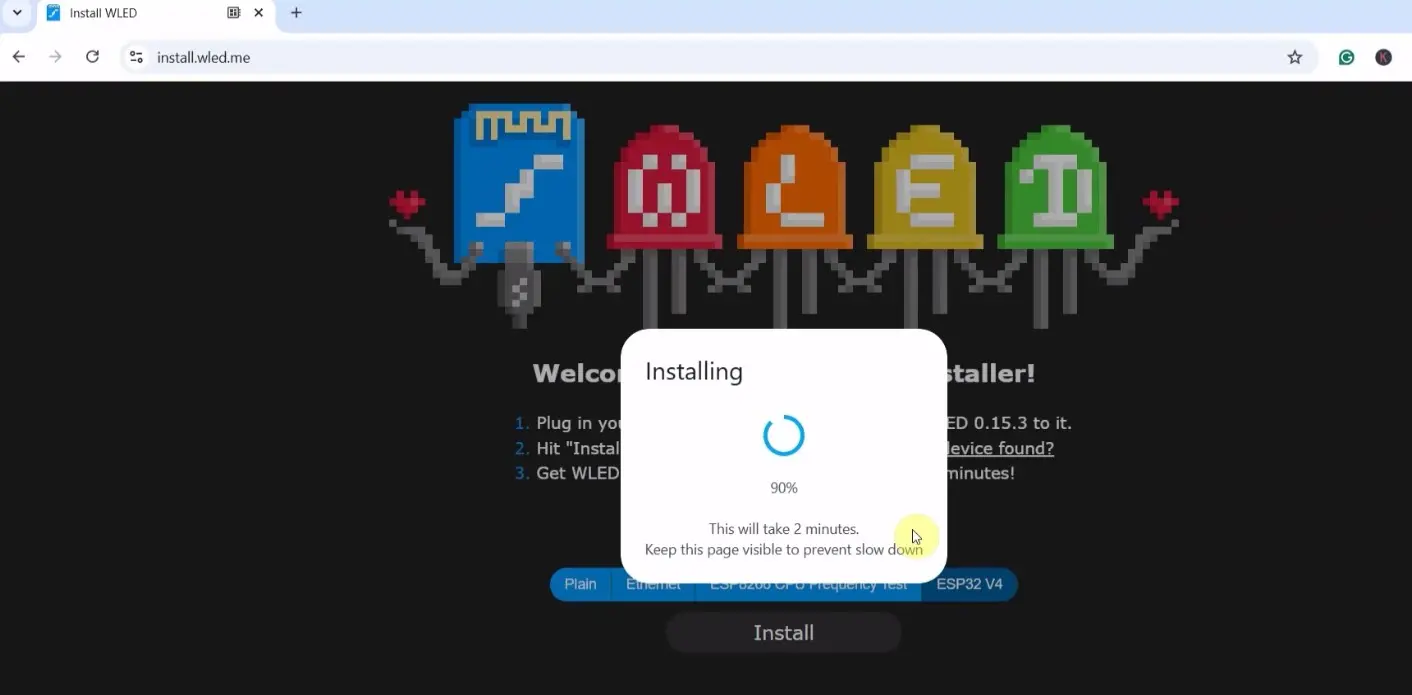
Now the Firmware will get installed. It may take some time.
Then click on “Next”.
Configure WiFi
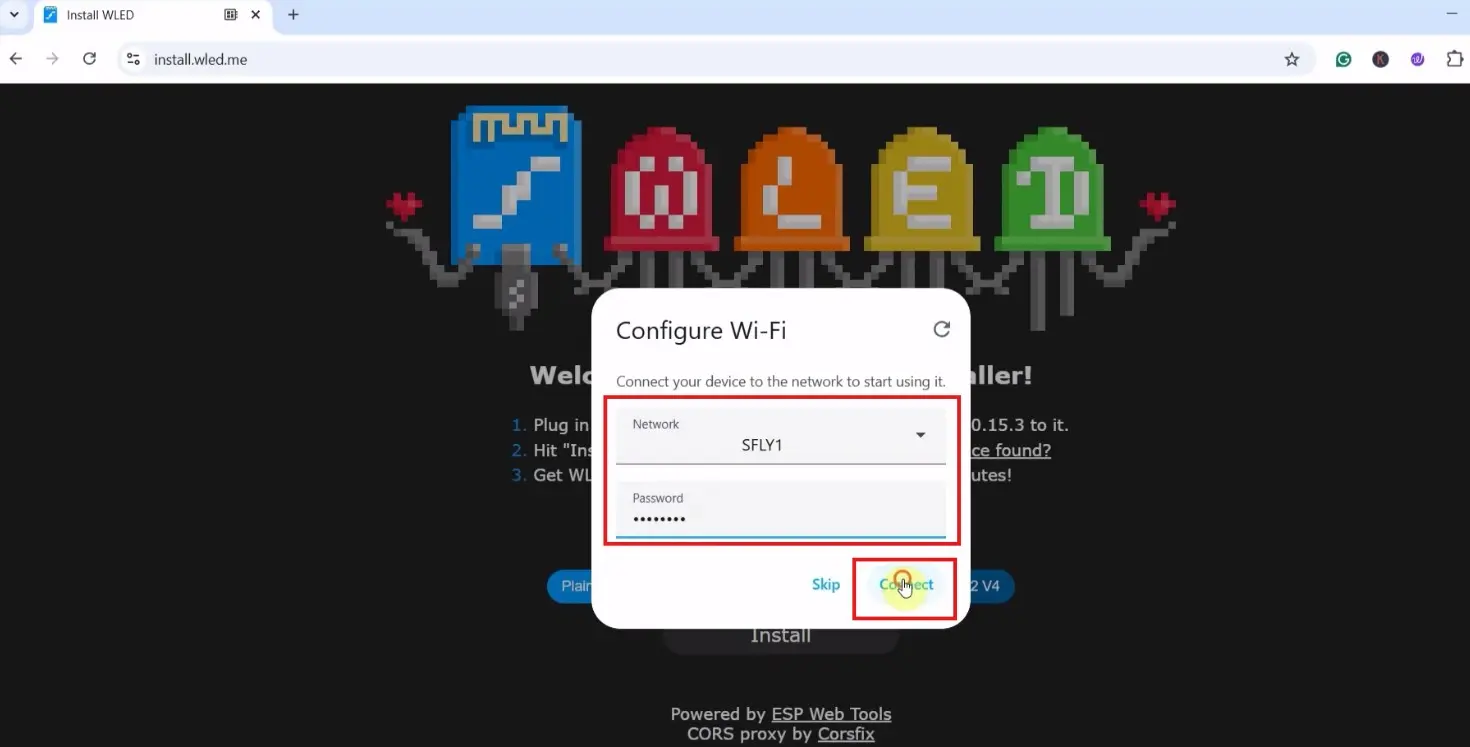
Enter the WiFi Credentials (WiFi Name & WiFi Password).
Then click on “CONNECT“
Click on “VISIT DEVICE”
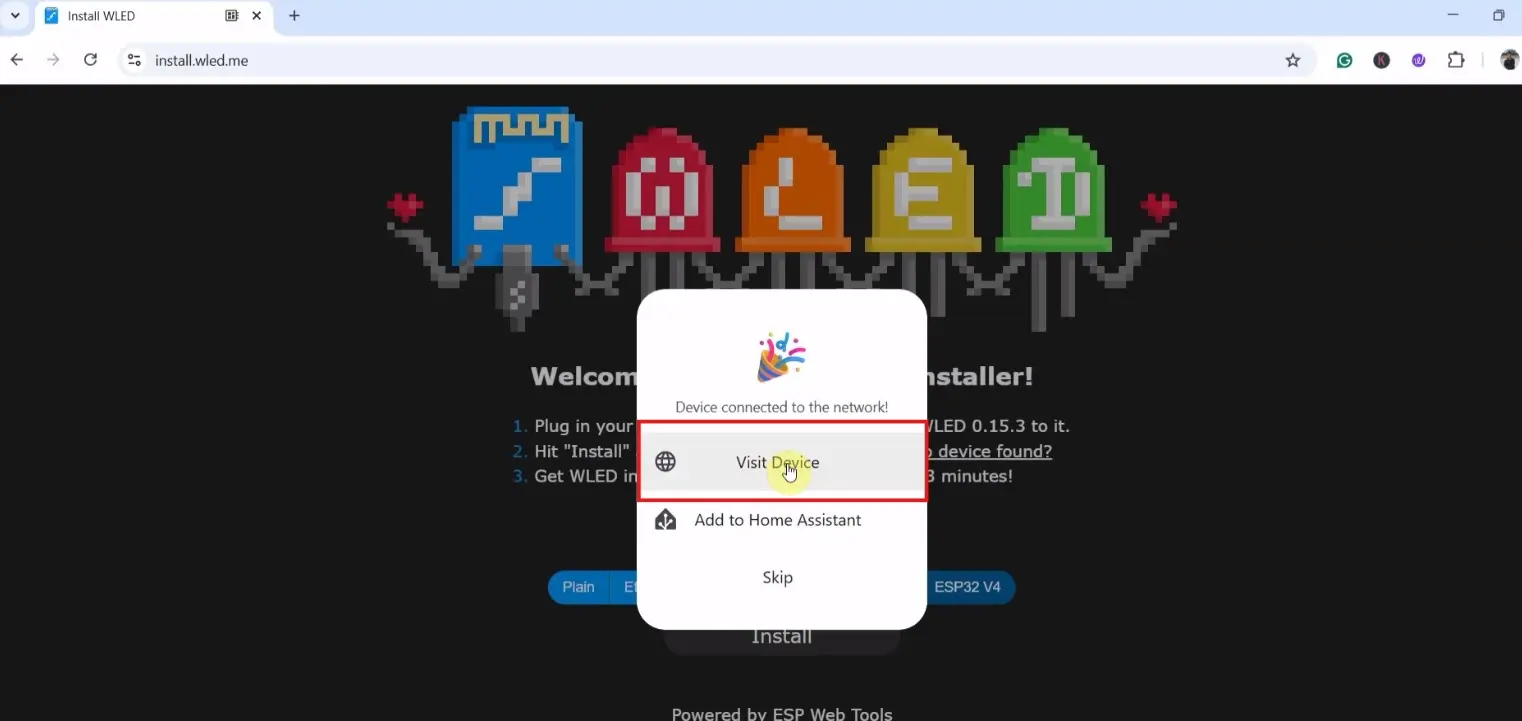
Now click on “VISIT DEVICE” to see the dashboard.
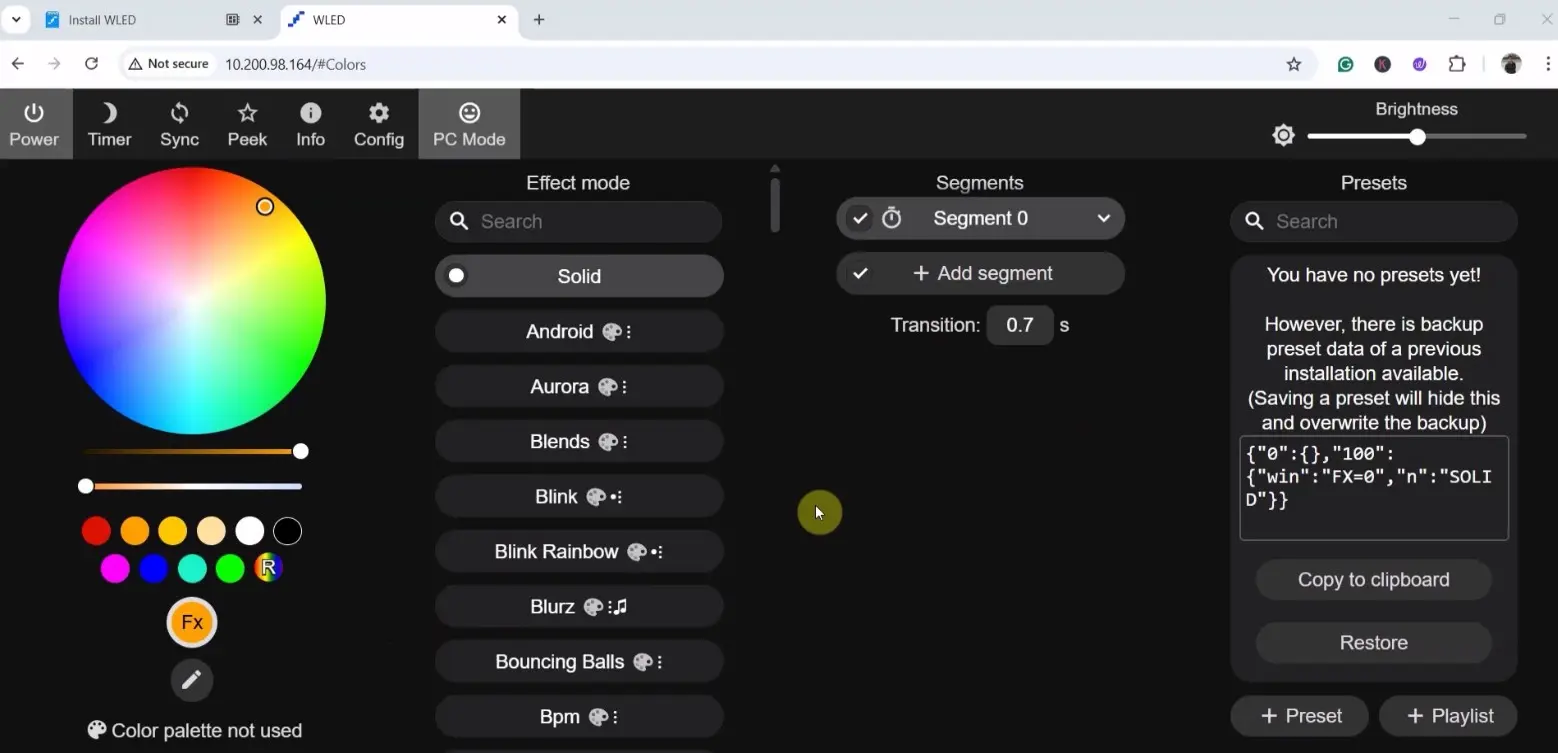
Note that WLED hosts its own web server on the ESP32 chip itself, so the WLED app is not even required. If you want, you can configure it from the web browser.
PCBWay – Expert PCB Layout Services
Now, bring your electronics projects to life with professional PCB layout services starting from just $50

Our skilled engineers specialize in designing everything from basic circuits to advanced multi-layer and rigid-flex PCBs.
For more details: PCBWay – Expert PCB Layout Services

With a strong focus on signal integrity, EMC optimization, and DFM/DFT best practices, we ensure reliable performance and smooth manufacturing. Whether it’s high-speed, RF, or industrial applications, we provide fast turnaround and precision layouts to bring your ideas to market efficiently.
About the WLED platform
WLED is a popular open-source firmware for controlling addressable LED strips using microcontrollers such as the ESP8266 and ESP32. It provides an easy and powerful way to create stunning lighting effects without the need for complex programming.
Once installed, WLED allows users to control LEDs through a web interface, mobile app, or even voice assistants, making it highly versatile for both beginners and advanced users.
One of the biggest advantages of WLED is its rich set of built-in effects and color presets. Users can choose from hundreds of dynamic animations, customize brightness, speed, and colors in real time, and even sync lights to music with additional hardware. It also supports segments, allowing different parts of a single LED strip to display different effects simultaneously, which adds a professional touch to any lighting setup.
WLED also integrates seamlessly with smart home ecosystems. It supports protocols like MQTT, HTTP, and can be connected to platforms such as Home Assistant, Alexa, and Google Assistant. This makes it ideal for creating fully automated lighting systems that respond to schedules, sensors, or user commands.
Another key feature of WLED is its user-friendly setup and flexibility. It works with a wide range of LED types like WS2812B, SK6812, and more. Whether you’re building ambient lighting for your room, decorative lighting for festivals, or advanced IoT lighting projects, WLED offers a reliable, customizable, and cost-effective solution.